
WhatsApp hacks & features
With WhatsApp being one of the most widely used messaging apps among Singaporeans, chances are you’re already familiar with the usual tricks – pinning, editing, and deleting messages, hiding your “seen” status, and joining useful WhatsApp channels.
But the app is constantly updating, and there are now many new and lesser-known WhatsApp hacks and features you might not have tried yet.
Table of Contents
1. Parent-managed accounts
Review message requests & manage privacy settings
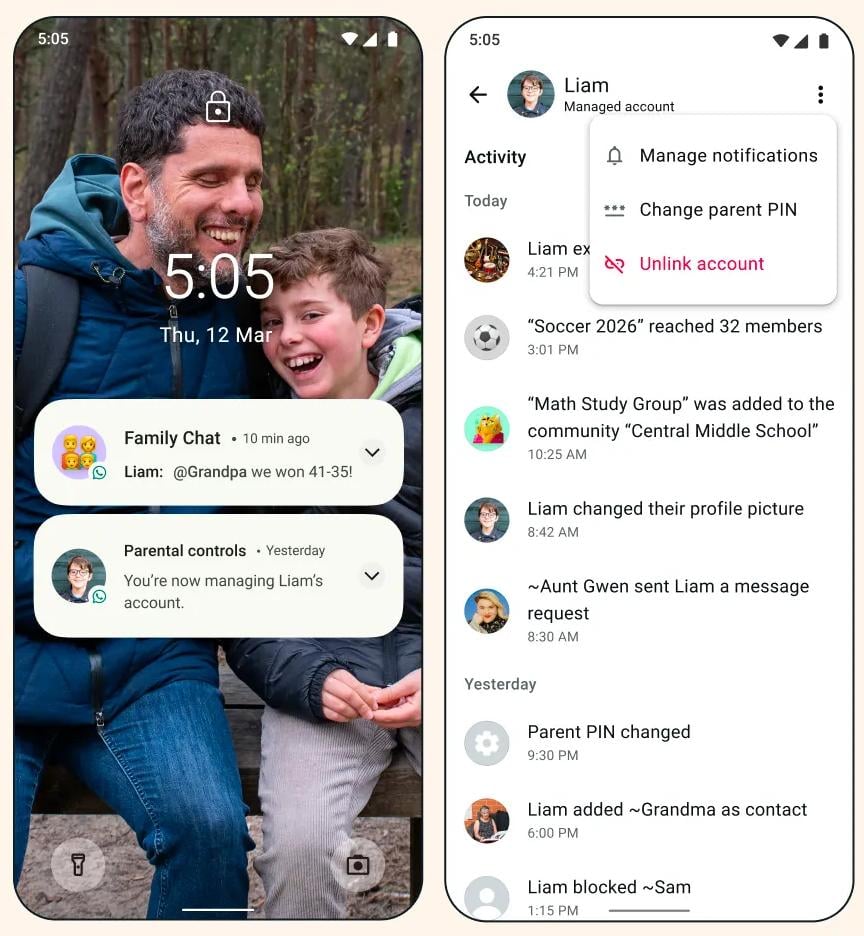
Image adapted from: WhatsApp
You may have reluctantly handed your kid a phone so you can stay in touch after school hours, but you’re also worried about who else might be messaging them. If this sounds like you, you’ll probably find the new parent-managed account for children under 13 useful – this feature will be rolled out gradually in the following months.
It allows you to control who gets to contact your kid, choose the groups they can join, review message requests from unknown numbers, and manage their privacy settings. These controls are also protected by a PIN on the parent’s phone, so your child won’t be able to mess with the settings.
Here’s how to create a parent-managed account:
- Download WhatsApp on your child’s device, select a language, select “More options”, then “Create a parent-managed account”.
- From your phone, scan the QR code displayed on your child’s device.
Find out more about how to set up a parent-managed account on WhatsApp.
2. Format text
Bold, italicise, strikethrough, monospace & more
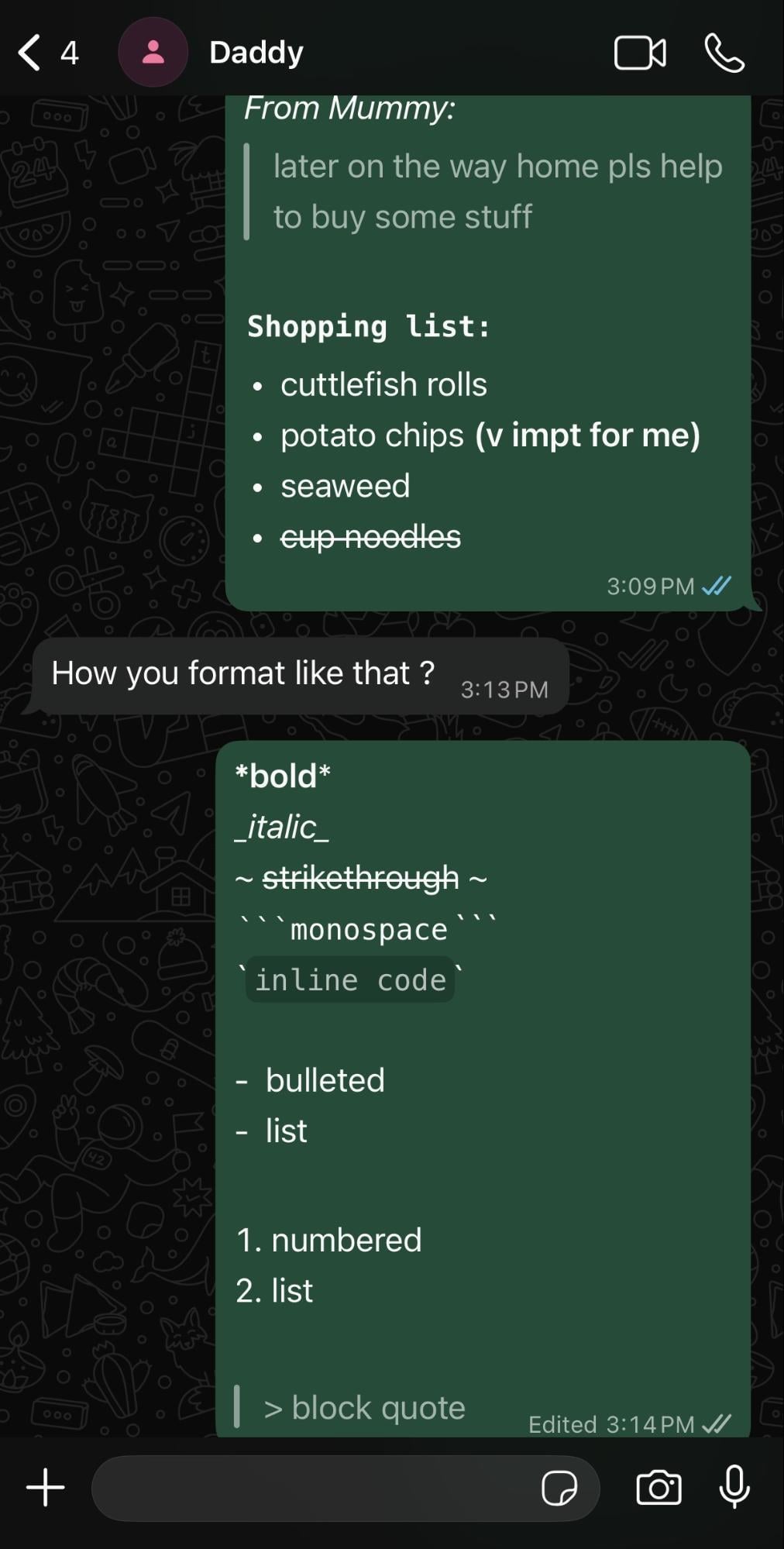
Image adapted from: Ong Rui En
Formatting text on WhatsApp isn’t exactly new, but you might not be using all the options available. If you’re an iOS user, you can select the text you want to format, then tap on “format”, before picking either “bold”, “italic”, “strikethrough”, or “monospace”.
For Android users or for the slightly more manual way, add these symbols before and after your text:
- An asterisk (*) for bold.
- An underscore (_) for italic.
- A tilde (~) for strikethrough.
- 3 backticks (“`) for monospace.
- 1 backtick (`) for inline code.
For these 5 formats above, make sure not to leave a space between the text and the symbols.
Here’s another hack: Use a hyphen (-) and hit space before the text to create bulleted lists, or the number 1 followed by a period (.) and a space to start a numbered list.
Inputting the greater-than (>) sign followed by a space will turn your text into a block quote.
3. Turn off notifications for emoji reactions
Reduce notification spam
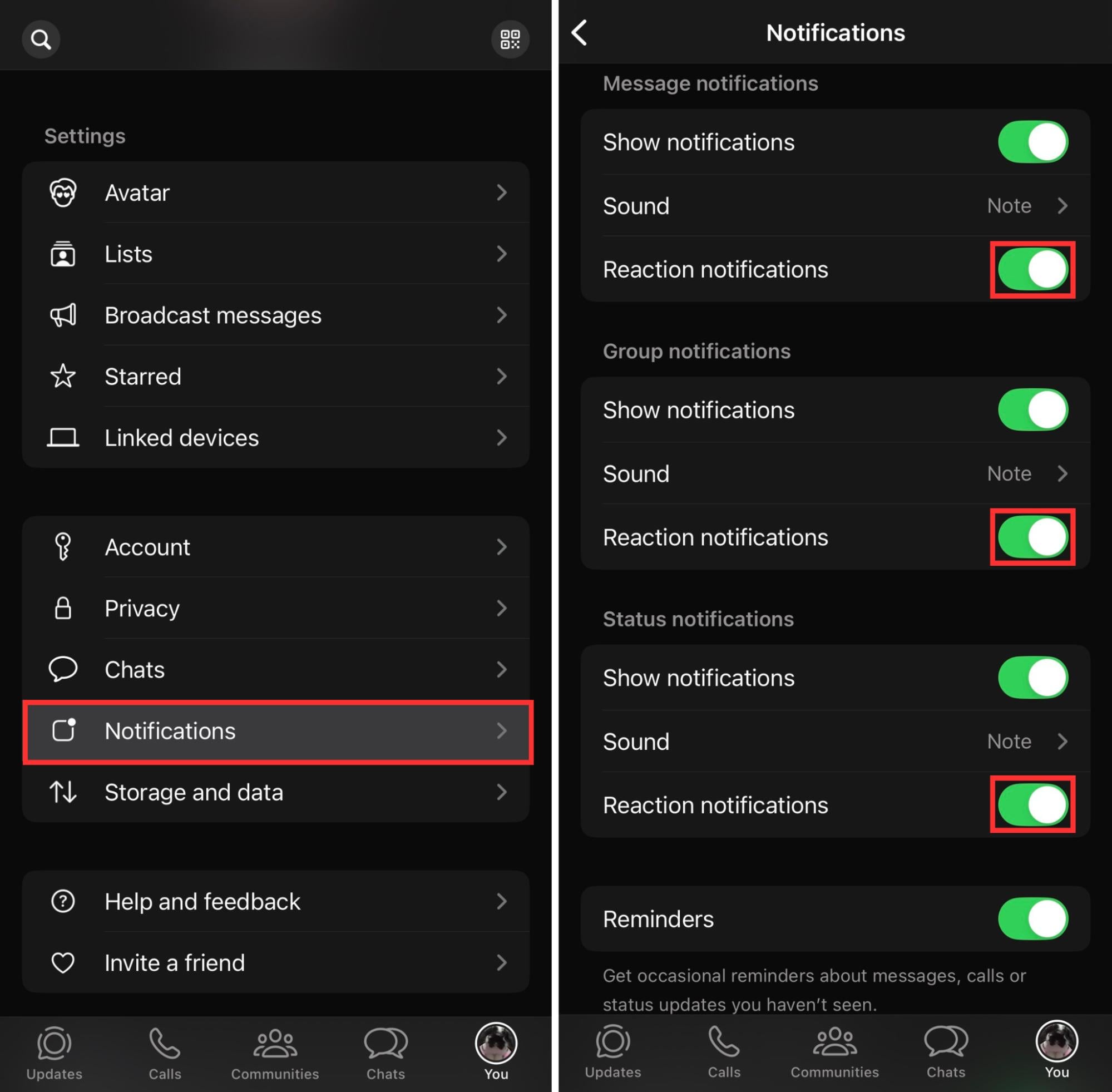
Image adapted from: Ong Rui En
It feels like the “react with an emoji” function was only recently introduced, but now, it seems like almost every other message comes with an emoji reaction attached. If the notification spam from emoji reactions is getting on your nerves, there’s a way to turn them off.
Go to your WhatsApp Settings and tap on “Notifications”. Here, you can toggle on and off notifications for emoji reactions – choose to do so for private messages, group messages, and statuses.
Locate your friends & family easily
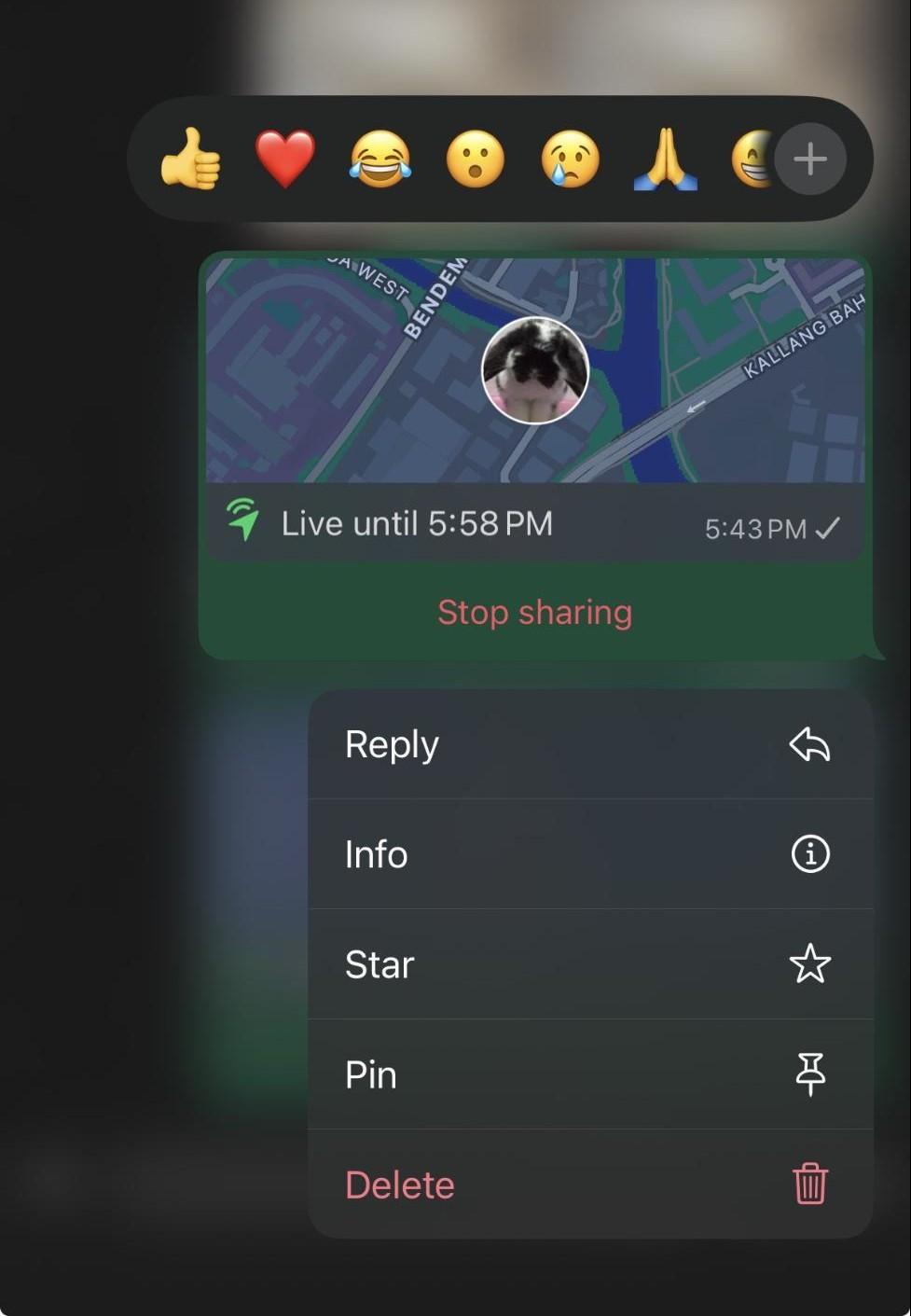
Image adapted from: Ong Rui En
No more playing hide-and-seek with your friends when meeting up. WhatsApp’s live location function updates as you move, so your recipient can track your location in real time.
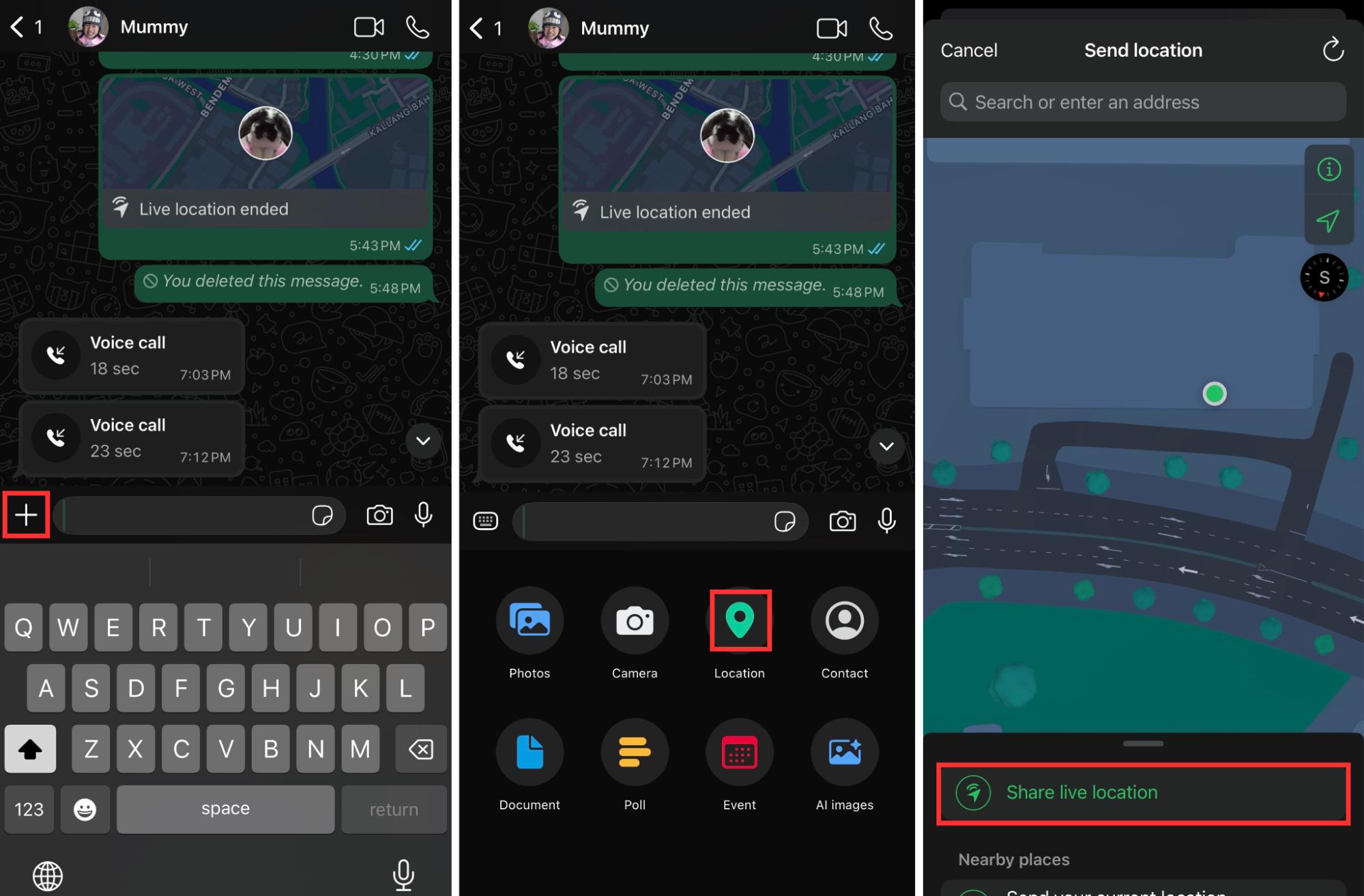
Image adapted from: Ong Rui En
Here’s how to share your location:
- Make sure to allow WhatsApp to access your location through your phone’s location settings first.
- In your chat with whoever you want to share your location with, tap on “+” > Location > Share live location.
- Choose the duration that you want to share your location for, with options ranging from 15 minutes to 1 hour and 8 hours, then hit send.
With this feature, “Where are you?” spam texts from your parents might even become a thing of the past.
5. Make stickers with your photos, emoji combinations & AI
Create custom stickers on the spot
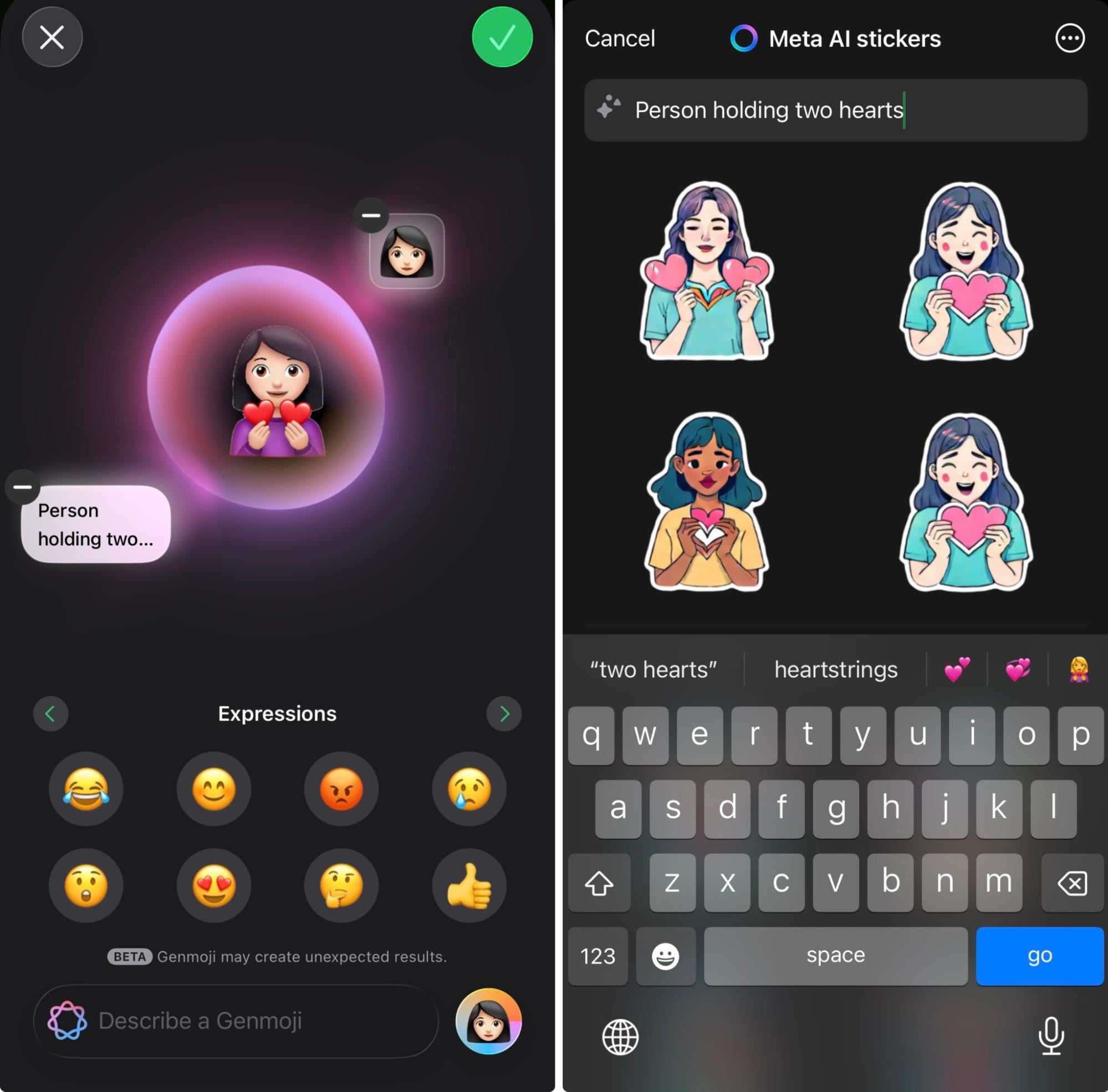
Genmoji (left) and Meta AI stickers (right) generating stickers for “Person holding two hearts”.
Image adapted from: Ong Rui En
Sometimes, we just can’t find the right sticker to express ourselves. This is when WhatsApp’s in-app sticker creation features might prove useful. For quick sticker reactions, you can use AI functions like Genmoji or Meta AI stickers. Find Genmoji on your emoji keyboard, or tap on the stickers icon, tap on “create”, then “use AI” for Meta AI stickers.
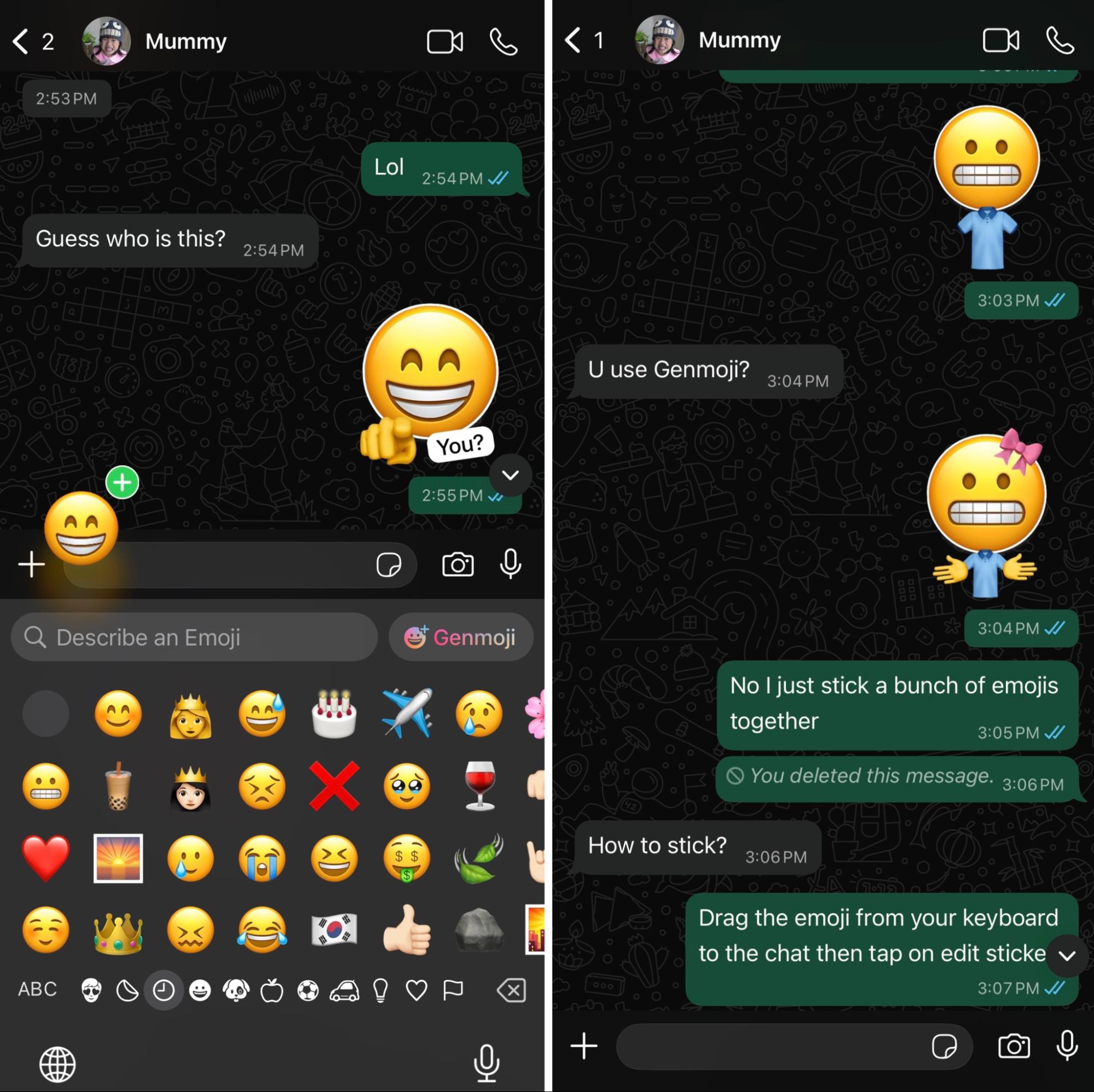
Image adapted from: Ong Rui En
For more personalised, quirky stickers, there’s also the option to slap together a few emojis and send them as stickers. Here’s how to do it:
- Drag the main emoji that you’ll be using up and release it outside of the keyboard when the green “+” appears.
- Tap on “edit sticker”.
- Tap on the sticker icon at the top right corner of your screen to add more emojis and stickers to the current emoji. You can also add text and draw on your sticker.

Turning a video into a sticker.
If your friends have always turned you into meme stickers, now’s the time to take revenge.
Tap on the stickers icon, then tap on “create” and select the photo or video you want to turn into a sticker. The subject of the image will automatically be cropped out into a sticker. If you have selected a video, you can trim it to the length you want and fit it into a square to send as a moving sticker.
6. Turn on advanced chat privacy
Prevent sensitive info from accidentally getting leaked
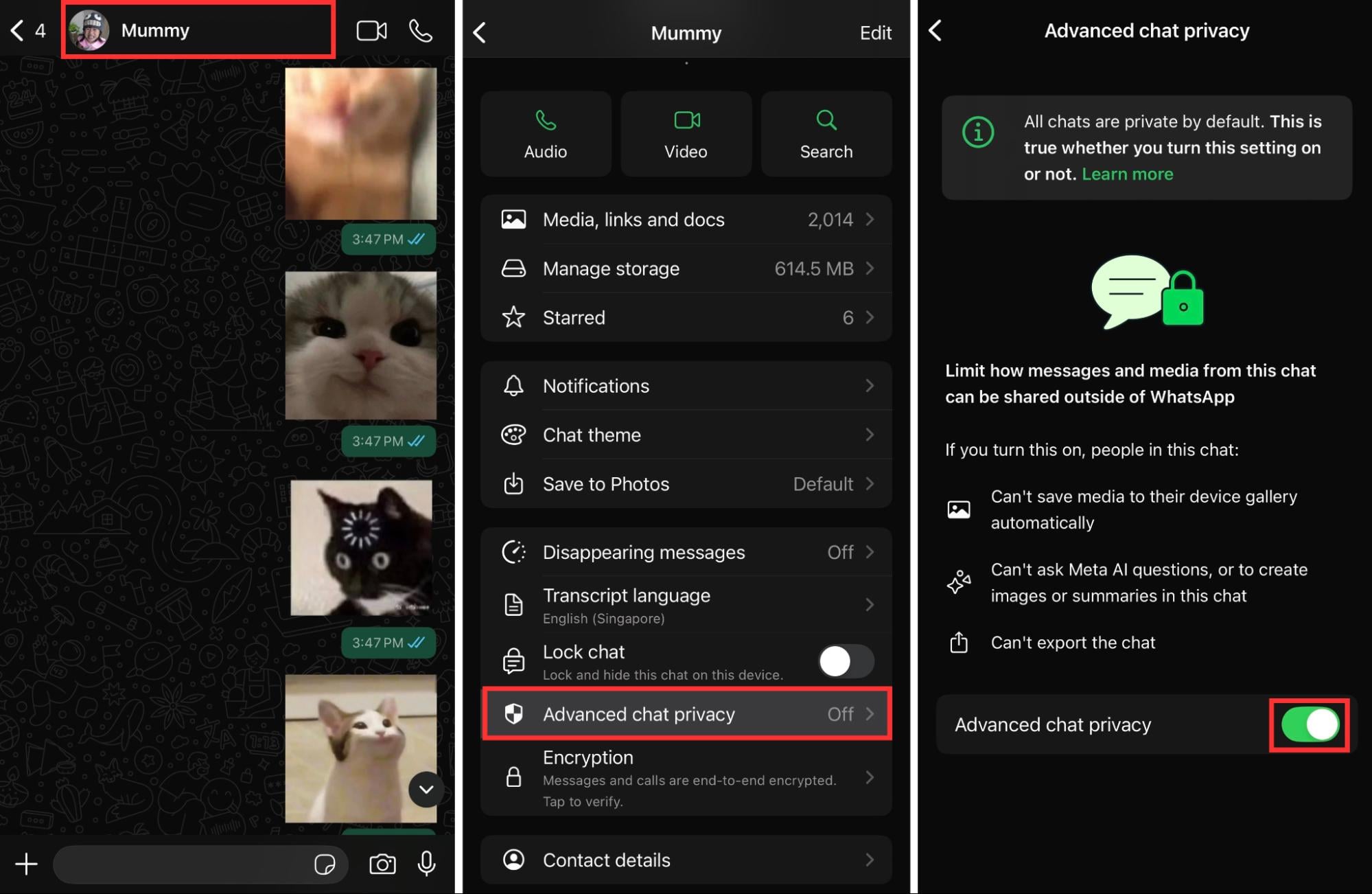
Image adapted from: Ong Rui En
People already know about disappearing messages and locking chats, but not many know that you can turn on advanced chat privacy too.
For instance, you’re sharing screenshots of your passwords with your parents on WhatsApp, but you know they’ll be saved to their photo gallery by default. Turning on advanced chat privacy means that media you send won’t be saved to the recipient’s gallery automatically, and they won’t be able to use Meta AI in the chat or export the whole chat.
Here’s how:
- In your chat with the recipient, tap on the top bar where the contact name is.
- Scroll down and tap on “Advanced chat privacy”.
- Toggle it on.
However, they will still be able to forward your messages or take screenshots of the chat. This function is not an all-encompassing privacy guarantee, but it can be useful if you frequently share sensitive information in your chats with the recipient.
7. Send video notes
Also known as “Telebubbles” on Telegram
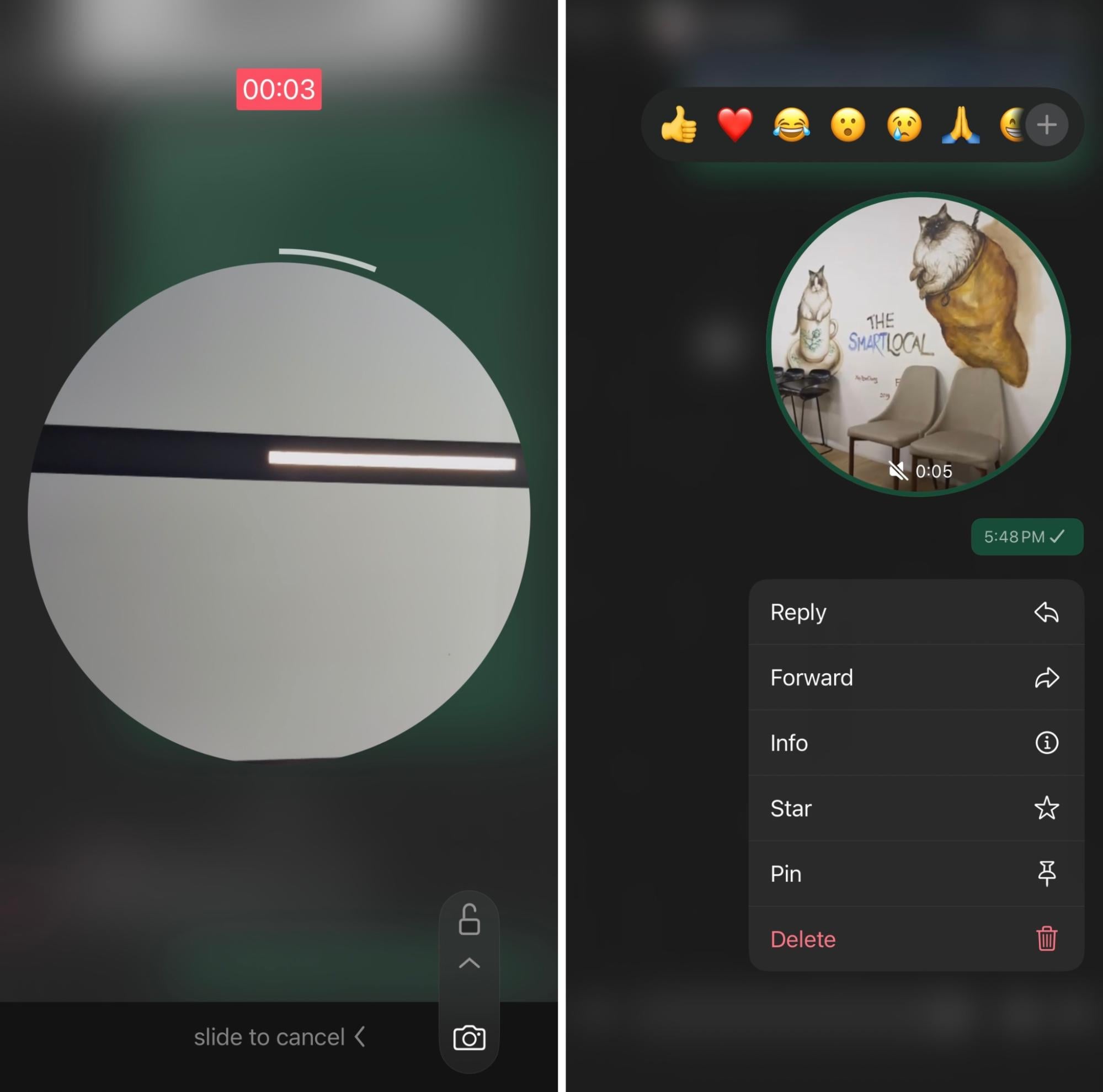
Image adapted from: Ong Rui En
Video messages have been around since 2017 on the messaging platform Telegram, but it was only in 2023 that WhatsApp rolled out video notes, a similar circular video message bubble. It’s a quick and convenient way to send visual updates of what you’re doing to your besties and significant other.
To send a video message, just tap and hold on to the camera icon in your chat and release to send once you are done recording. If you’re not happy with your recording, slide your finger to the left to cancel.
A nifty trick is to use the lock mode when recording your video message. Just click and hold on the camera icon, then swipe up to lock – this will keep the video recording, while freeing up your hand and allowing you to switch to the back camera.
8. Transcribe voice messages
Avoid being a public nuisance
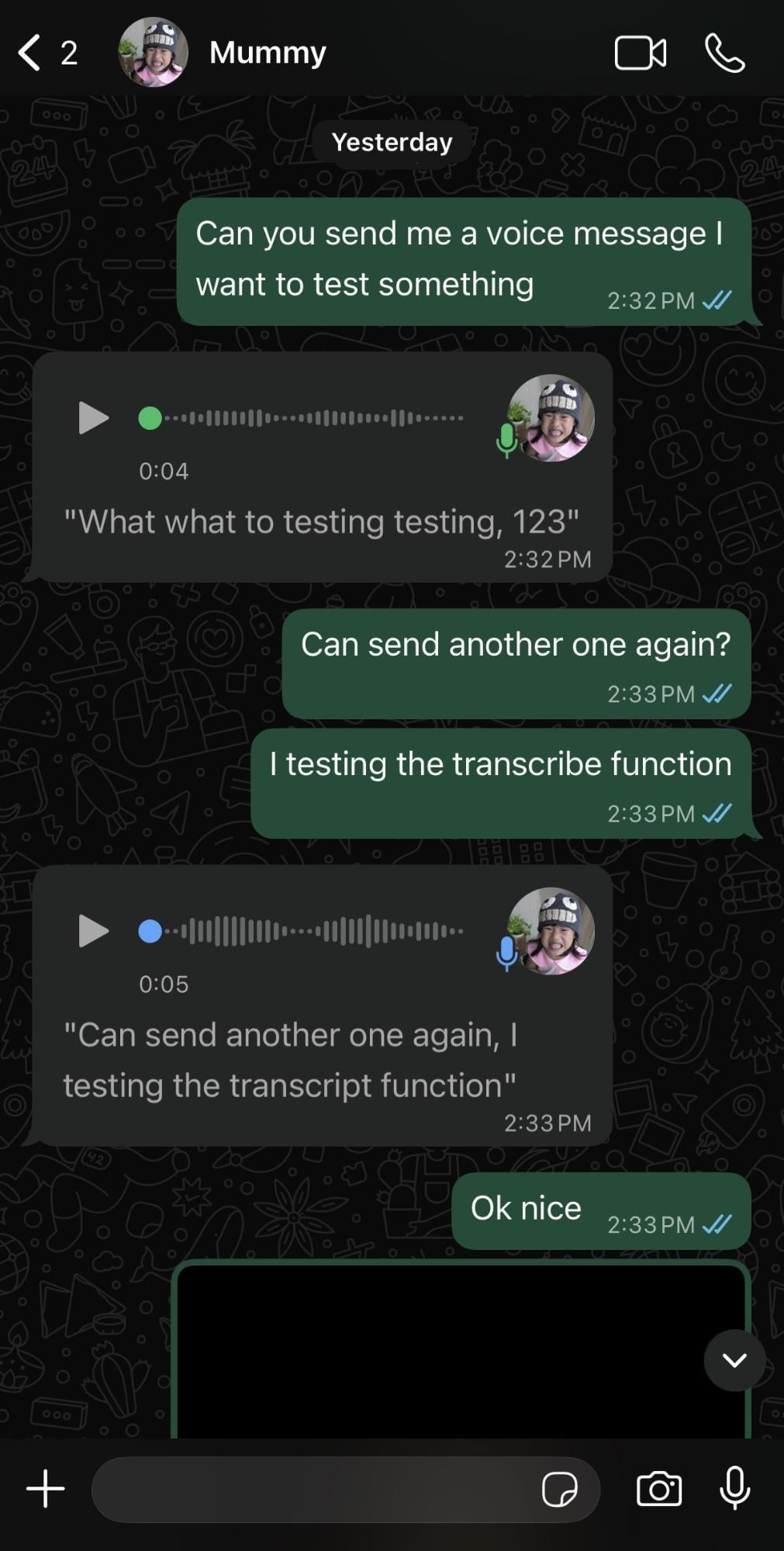
Image adapted from: Ong Rui En
Don’t be like those aunties and uncles on the MRT who play their TikTok videos and voice messages out loud. If you’re out in public or don’t want to listen to a 10-minute-long voice message, simply press and hold the voice message, then tap “transcribe”.
This handy voice message transcribing feature means you no longer need to scramble for your earpiece or squeeze the phone speaker against your ear to catch a voice note in public.
To tweak these settings permanently, tap on the “You” icon in the bottom right corner of your screen. Then, tap on “chats” followed by “voice message transcripts”. Here, you’ll be able to choose if you want future voice messages to be transcribed automatically.
WhatsApp features & hacks you probably didn’t know about
Now that you know there’s a whole bunch of tricks behind this green icon, you might as well put them to good use. Time to show off your new knowledge to friends and family, and maybe you’ll just start a new group chat era where you’re the designated tech support, whether you like it or not.
Check out more technology hacks:
Cover image adapted from: Ong Rui En